TNC System Guide
Welcome! This guide will help you make the most of your online experience with Tenafly Nature Center (TNC), including managing your account, memberships, and email preferences.
About Our System
Tenafly Nature Center uses a secure platform called Bloomerang to manage program registrations, memberships, donations, and communications.
When you click certain links on our website, you may be directed to pages that look different from the TNC website. These pages are part of our secure system, and this is normal.
General & Membership
-
Joining a MembershipJoining a Membership
-
Renewing Your MembershipRenewing Your Membership
-
Managing Your MembershipManaging Your Membership
-
Membership EmailsMembership Emails
-
Member Newsletter PreferenceMember Newsletter Preference
-
What’s Inside the Newsletter?What’s Inside the Newsletter?
-
Email PreferencesEmail Preferences
Donations & Events
-
Your TNC Donor AccountYour TNC Donor Account
-
Getting StartedGetting Started
-
What You Can Do with Your AccountWhat You Can Do with Your Account
-
Your Giving DashboardYour Giving Dashboard
-
Managing Payment MethodsManaging Payment Methods
-
Recurring DonationsRecurring Donations
-
Updating Your Account InformationUpdating Your Account Information
-
Program RegistrationProgram Registration
-
Tips for a Smooth ExperienceTips for a Smooth Experience
Volunteers
-
Coming soonComing soon
TNC memberships give you access to exclusive benefits and help support our mission.
Joining a Membership
To become a member, simply visit our website and complete the membership form. You may be directed to a secure page to finish the process, this is normal.
When joining, you will:
- Select your membership level
- Choose whether to renew automatically each year
- Enter your contact information
- (Optional) Add comments
- Complete a security check if prompted
- Enter your payment information:
- Credit or debit card
- Bank account (if available)
- Apple Pay or Google Pay (on supported devices)
Then click “Start Membership” to complete your registration.
After signing up:
- You’ll see a confirmation message on screen
- You’ll receive a confirmation email, which also serves as your receipt
Renewing Your Membership
If you select “Renew Annually”, your membership will automatically renew each year using your saved payment method.
If you do not select automatic renewal, you can renew later by:
- Submitting a new membership form on our website
- 📧 Emailing TNC staff
- Sending payment (such as check or cash) directly to TNC
Important Notes About Memberships
- Submitting a membership form again will create a new membership, not update your existing one
- If a duplicate membership is created, TNC staff will assist in resolving it
Managing Your Membership
With your account, you can:
- Join as a new member
- Renew your membership
- View your membership status
Please note:
The following membership changes cannot be made online, including:
- Updating payment methods
- Upgrading or downgrading membership levels
- Canceling or ending a membership
To make any changes, please contact us at:
📧 info@tenaflynaturecenter.org
Our staff will be happy to assist you.
Membership Emails
After joining or renewing your membership, you may receive the following emails:
- Confirmation Email (Receipt): Sent after you join or make a payment. This serves as your official receipt.
- Automatic Renewal Receipt: If you are enrolled in annual auto-renewal, you will receive a receipt each time your membership renews.
- Acknowledgement Emails: You may also receive follow-up messages or acknowledgements from TNC related to your membership.
If you do not see these emails in your inbox, please check your spam or junk folder, as they may occasionally be filtered there.
To ensure you receive future emails, we recommend adding our email addresses to your contacts or safe sender list.
Visit our Email Delivery & Whitelisting Instructions for more information
Member Newsletter Preferences
As part of your TNC membership, you receive our quarterly newsletter, filled with updates and seasonal inspiration.
Members can choose how they receive the newsletter:
- 📬 Printed Copy: Mailed to your home address
- 📧 Digital Version: Email with a link to our interactive PDF flipbook
Many members choose the digital option to help reduce their carbon footprint
If you would like to change how you receive your newsletter, please email our staff at:
📧 info@tenaflynaturecenter.org
We’ll make sure you receive this member benefit in the way that works best for you.
What’s Inside the Newsletter?
Each issue is designed to help you connect with nature and the TNC community. Inside, you’ll find:
- Upcoming programs, hikes, and family events
- Opportunities to volunteer and help care for the preserve
- Stories highlighting the work of our staff, volunteers, and supporters like you
Whether you’re looking forward to getting back out on the trails, learning something new, or connecting with fellow nature lovers, each issue is full of inspiration for the season ahead.
We want to send you the information that matters most to you, and give you control over how you hear from us.
Updating Your Email Address
You can update your email address at any time without contacting TNC.
To update your email address:
- Open an email from Tenafly Nature Center
- Click “Manage Email Preferences” at the bottom of the message
- Click “Use a Different Email Address Instead”
- Enter your new email address
- Click “Save Preferences”
Your account will now be updated with your new primary email address.
Tip: TNC staff can also assist with updating your email address if needed.
Managing Your Email Subscriptions
You can choose what types of emails you receive from us, or unsubscribe at any time.
To update your preferences:
- Open an email from Tenafly Nature Center
- Click “Manage Email Preferences” at the bottom of the message
- Choose one of the following options:
- Subscribe to All Mailings – Receive all updates and announcements
- Only Send Me Mailings Based on My Interests – Choose specific topics you care about
- Unsubscribe from All Mailings – Stop receiving marketing emails
- Click “Save Preferences”
Please note: Even if you unsubscribe from marketing emails, you will still receive important transactional emails such as receipts or registration confirmations.
Creating a TNC account through our secure system makes it easier to interact with us and saves you time in the future.
Getting Started
When you visit a donation, program, or membership form on our website, you may see a “Sign In” option at the top of the page.
- If you already have an account, you can sign in
- If not, click “Create an Account” to get started
Once your account is created, your basic information will automatically fill in on future forms to save you time.
What You Can Do with Your Account
With your account, you can:
- Register for programs and events
- View your donation history with Tenafly Nature Center
- Manage your personal and contact information
- Save and manage payment methods
- Set up and manage recurring donations
- Save time with forms that automatically fill in your details
When you are logged in during transactions, your activity is saved so you can keep track of your involvement with TNC.
If you participate in events, especially recurring or annual events, your account makes future registrations much faster.
Your Giving Dashboard
After signing in, you can access your Giving Dashboard by clicking “My Account.”
From your dashboard, you can:
- View past donations and receipts
- See upcoming recurring payments
- Filter your donation history
- Access detailed transaction records
If you previously made a donation without logging in, you may be prompted to link it to your account so it appears in your history.
Managing Payment Methods
In your account, you can:
- View saved payment methods
- Add new payment methods
- Remove existing payment methods (if not tied to active payments)
If a payment method is tied to an active recurring donation, you may need to update that donation before removing the method.
Recurring Donations
If you set up a recurring donation, you can manage it through your account:
- View your recurring donations
- Pause or resume payments
- Update the payment method
- Edit the nickname for your donation
Please note:
To change the amount, frequency, or designation of a recurring donation, you will need to cancel the existing donation and create a new one.
Updating Your Account Information
In the My Account section, you can:
- Update your name and mailing address
- Update your email address
- Manage communication preferences
- Change your password
If you forget your password, you can request a reset from the login page. A reset link will be emailed to you and is valid for 24 hours.
When registering for a program:
- You may be asked to log in or create an account
- You may be taken to a secure Bloomerang page to complete registration
- Your information will be saved for faster checkout next time
- You’ll receive a confirmation email with details
If you don’t see your confirmation email, please check your spam or junk folder.
Tips for a Smooth Experience
- Use the same email address for all registrations and memberships
- Log in before registering for programs to save time
- Keep your contact information up to date
- Check your spam/junk folder if you’re expecting an email
- Add our email addresses to your contacts to ensure delivery
Need Help?
If you have any questions or need assistance, we’re happy to help.
📧 Email: info@tenaflynaturecenter.org
📞 Phone: (201) 568-6093
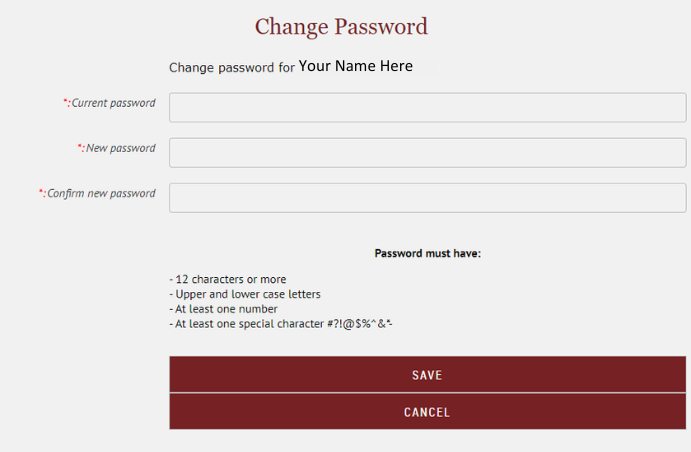
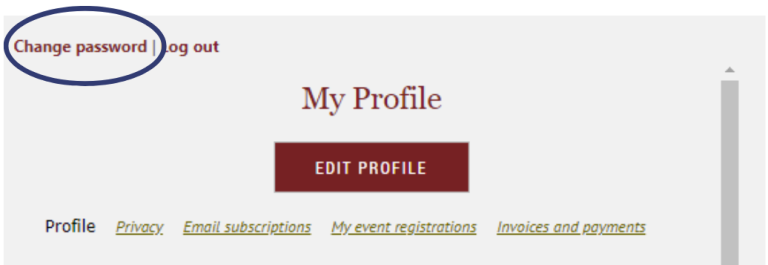
You can change your password by clicking the Change password link that appears above your account profile icon after you log into the site.
On the screen that appears, you enter your current password, the new password, and the new password again for confirmation.
-
Minimum of 12 characters
-
Must have a combination of upper and lower case letters
-
Must have at least one number
-
Must have at least one special character #?!@$%^&*-
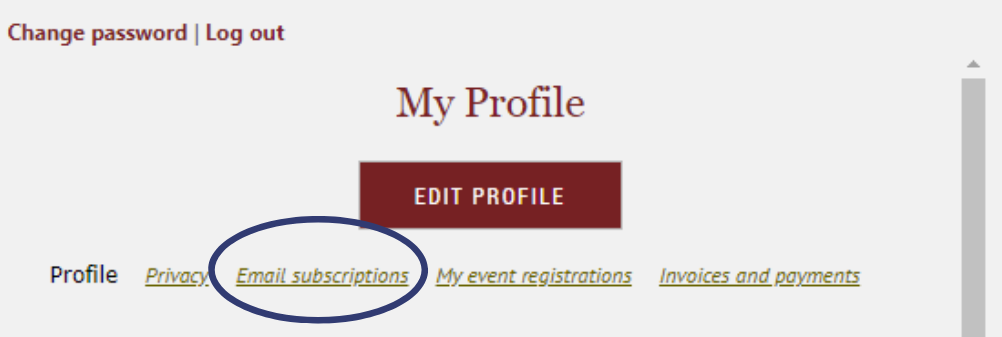
You can change your email preferences from your account profile on our website. To view your account profile, log in and click View profile. The link will appear when you click on your name.
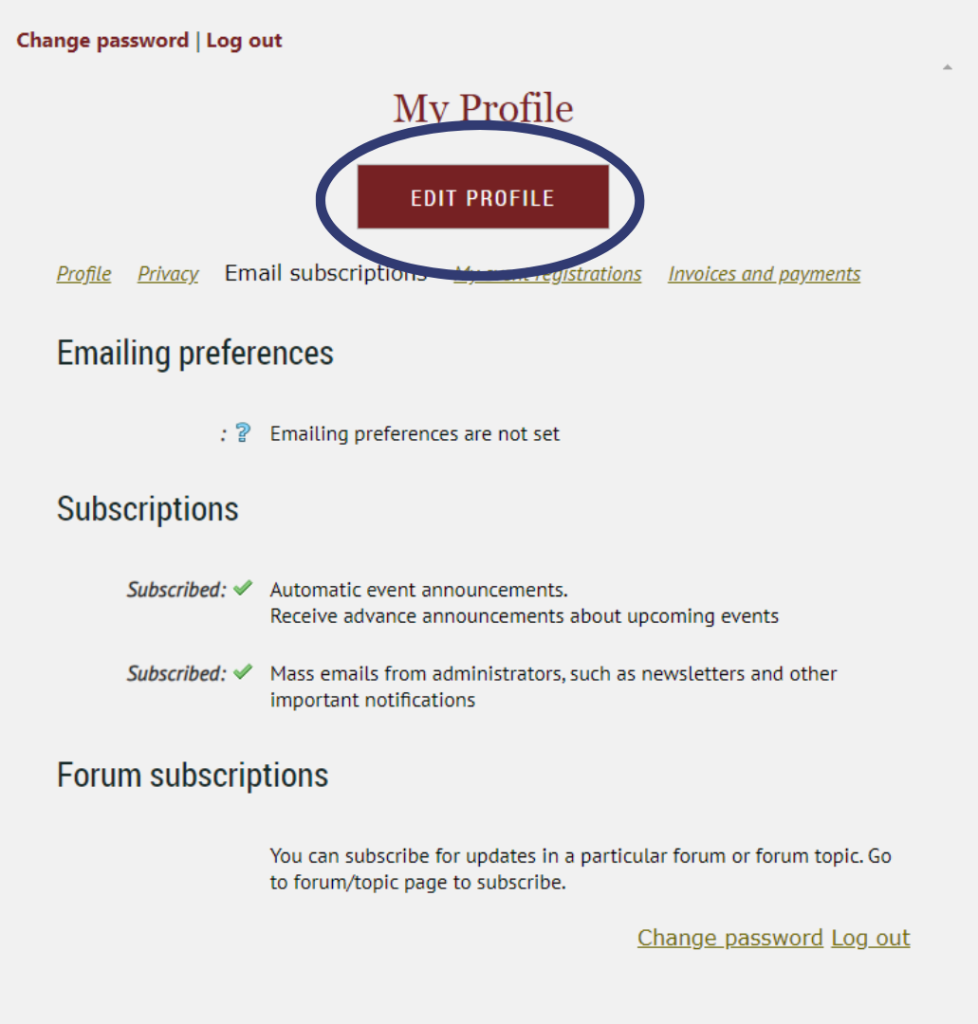
Click the Edit profile within your profile, then the Email subscriptions link.
You can now modify the kinds of emails you want to receive.
There are three types of emails you can control:
Event announcements: Automatic event emails
such as event announcements (sent to people not yet registered) and event reminders (sent to registered attendees only).
Manual email blasts: Email blasts sent by Site
Administrators.
Forum subscriptions: If you have already subscribed to discussion forum updates (not currently active on our site).
When you first set up your account, you will have event notifications and email blasts turned on.
After you have made your choices, click Save.
Note: The email settings above do not affect other automatic emails such as membership renewal reminders and invoices/receipts. Only TNC Staff can disable those emails.
Members can choose to either receive their newsletter at their home address as a printed copy or receive an email with a link to the pdf flipbook version.
Many members may choose the electronic option to reduce their carbon footprint.
Once you have logged in navigate to your member profile. The link will appear by clicking on your name and then Profile.
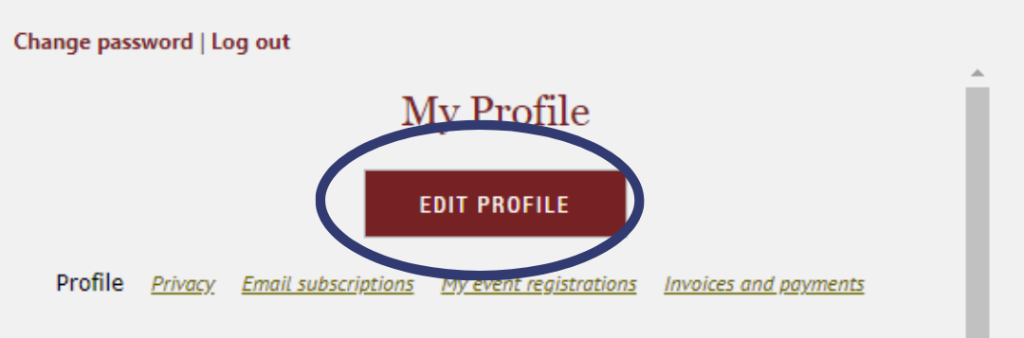
Then Click the “Edit profile button”
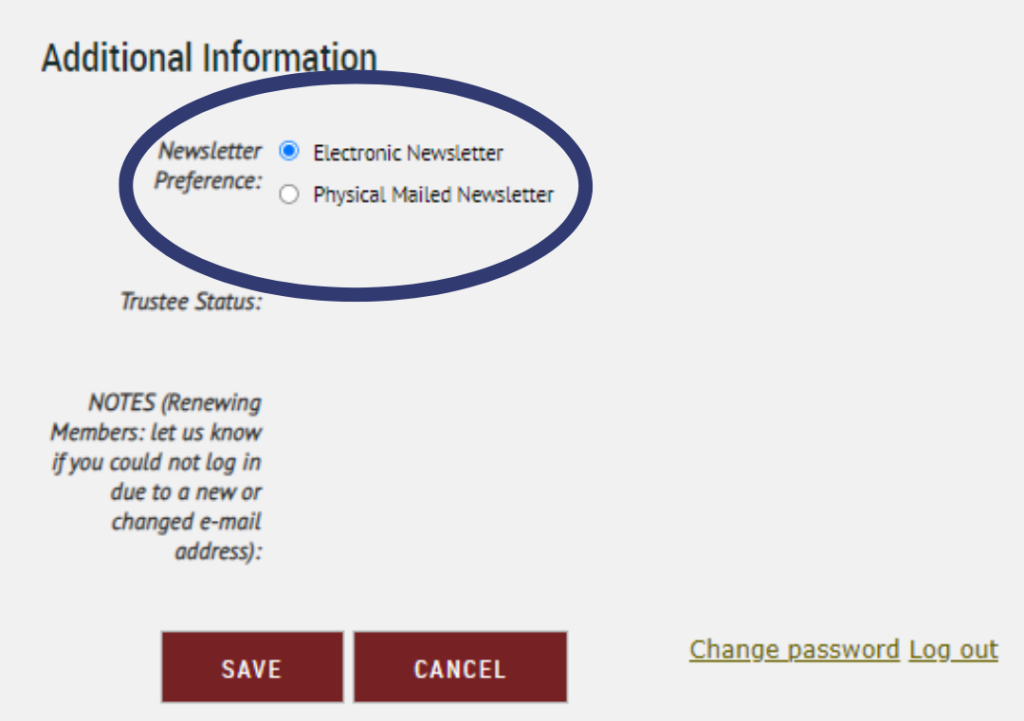
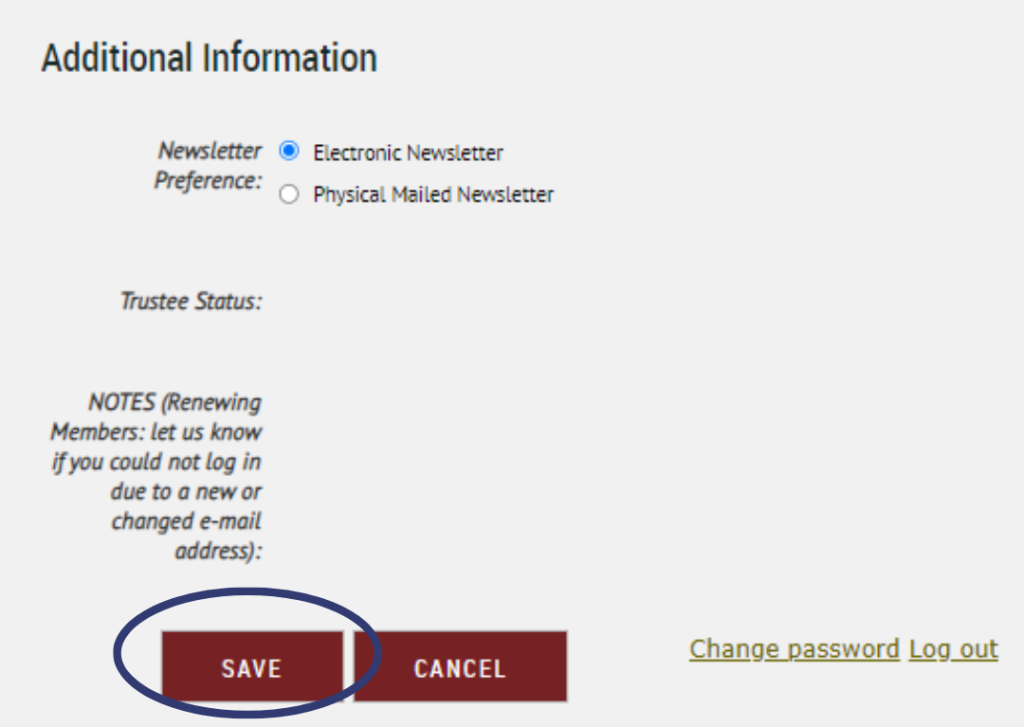
Scroll down and select the appropriate radio button nest to “Newsletter Preference”:
Click the “Save” button to save your preference.
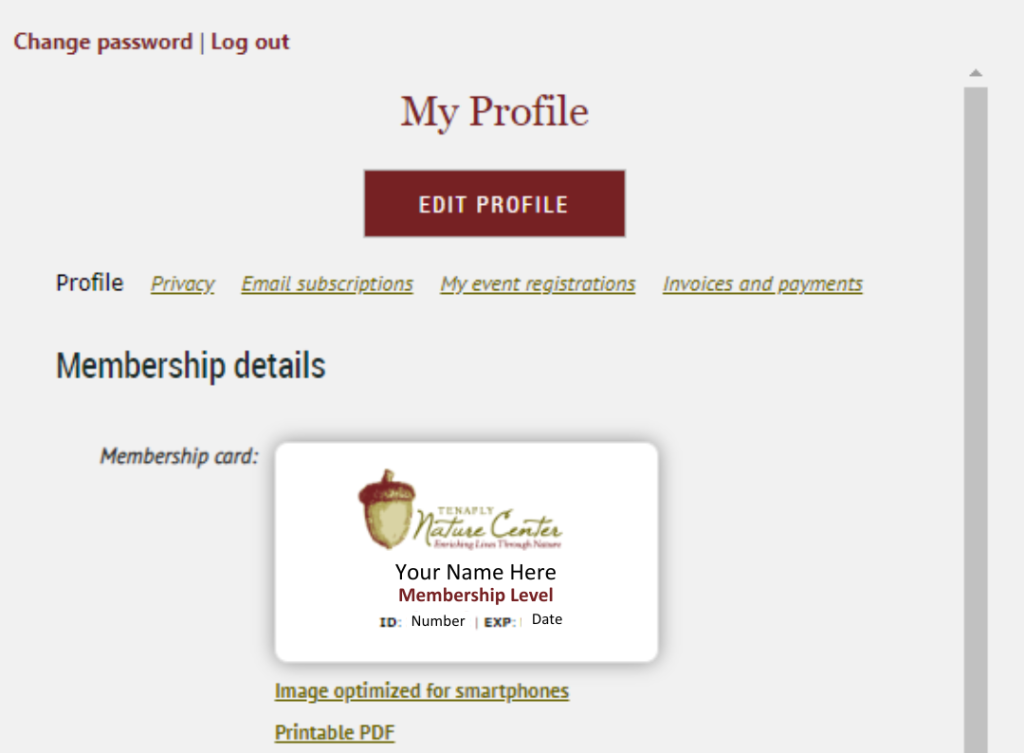
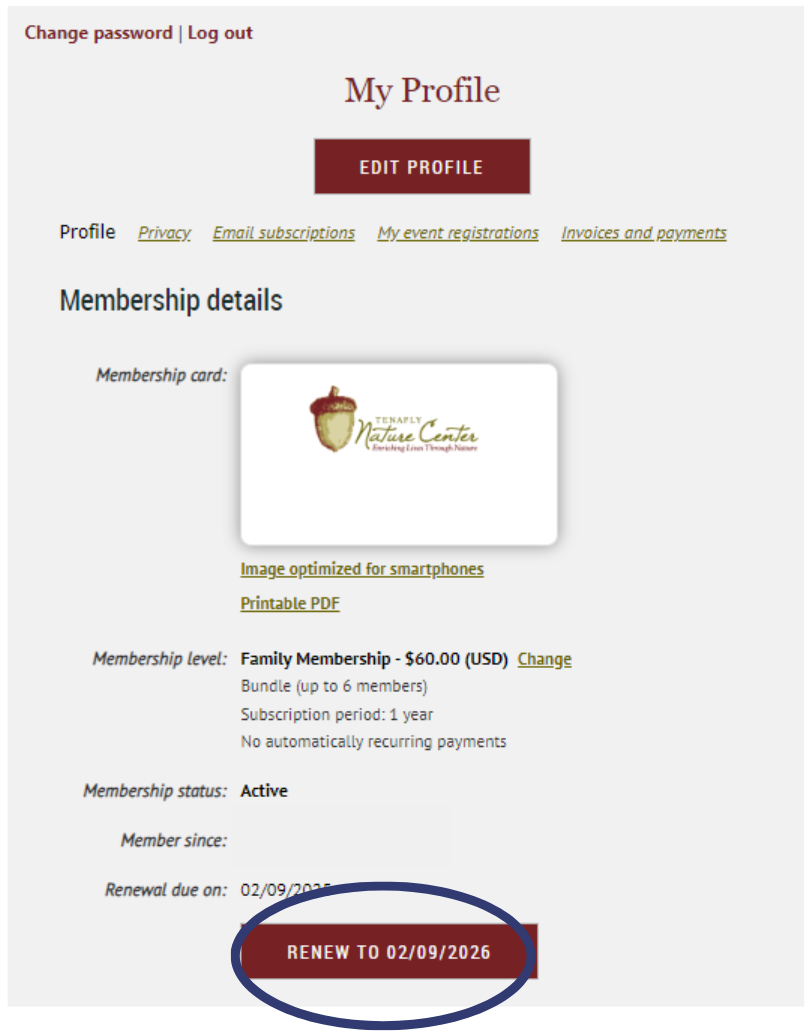
Only members can print or download membership cards. To print or download your personalized cards, log in to our site, then click your name to access your profile. and then click “View profile”.
The card will appear under the Membership details heading on their profile with all their membership details filled in.
From here, you can download their membership card as an image optimized for display on smartphones, or as a printable PDF.
Downloading the card as a PDF allows you to print the design directly onto cardstock then cut out the card along the cropmarks that appear on the page. You should make sure you set the scaling to 100% before printing.
The size of the membership cards are 88.9 x 50.8 mm or 3.5 x 2 inches when printed at 300 dpi (1050 x 600 pixels).
-
A membership renewal notice will be automatically emailed to you a before your membership renewal date. Within the renewal notice, you can click the link to log in to your account and go directly to your member profile.
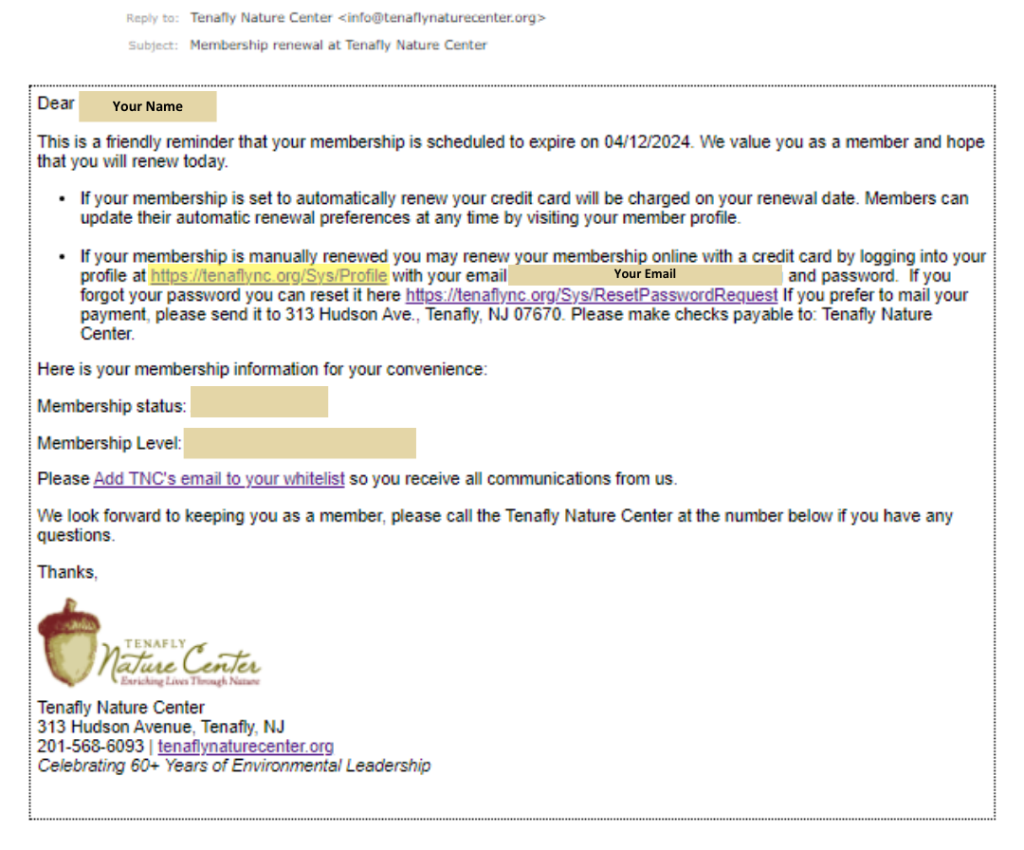
-
You can also renew your membership from our website by navigating to your member profile.
-
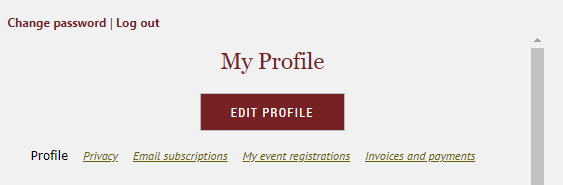
To view your member profile, log in to our website and click the link to your member profile.
-
The link will appear by clicking on your name and then view profile.
Once you have arrived at your member profile, click the Renew until… button on your Profile page. Alternately you can change your membership level at that time as well (Consider our auto-renewal membership and save having to do these steps manually every year!)
After you click the Renew button, you can review and update your membership details, then click the Update and next button. Then, click the Confirm button to confirm the renewal request. You will be taken to the Invoices and payments page where you can pay for the invoice for the renewal.
Until the payment is made, a Balance due notification will be shown on the notification bar.
A message will be displayed on your member profile.
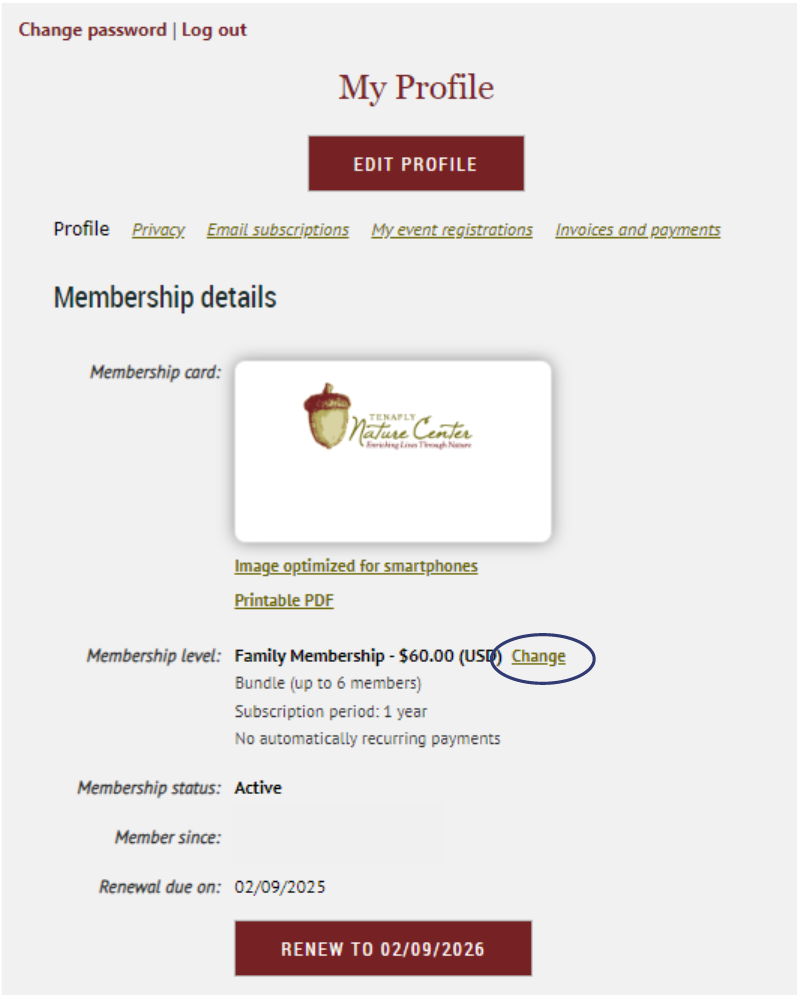
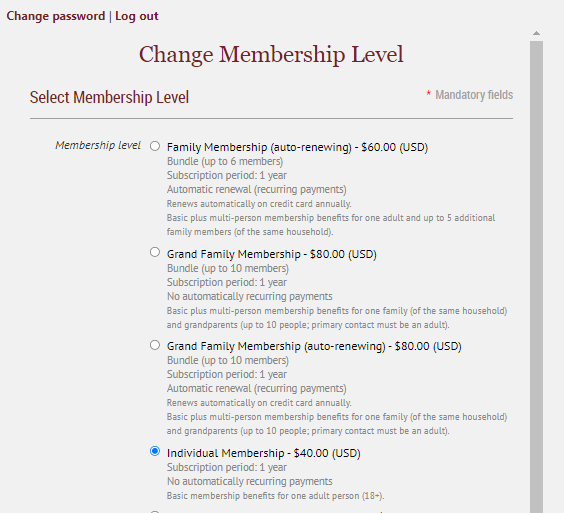
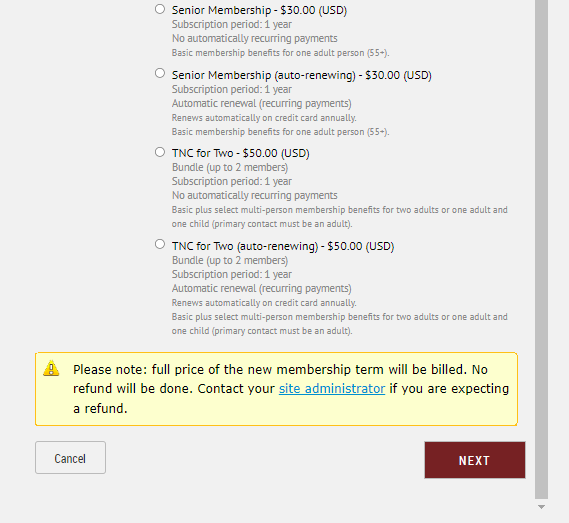
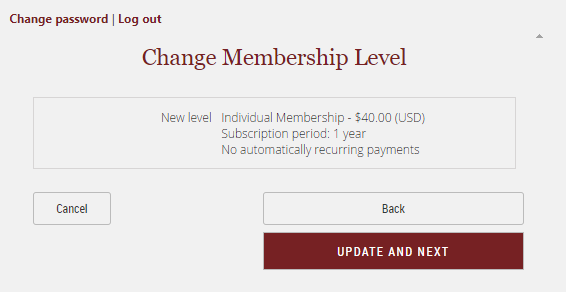
If you would like to change your membership level, click the Change membership button. Choose a new membership level then click the Next button. After reviewing your choice and updating any profile details, you click the Confirm and next button. Finally, you click the Confirm button to confirm the level change request. You will be taken to the Invoices and payments page where you can pay the membership fee.
Note: The full price of the new membership term will be billed, and the next renewal date will be calculated based on new level settings and payment date. There is currently no pro-rating based on the previous membership level.
After the online payment is completed, your membership record will be updated with a new membership level and
renewal date. Until the payment is received, notice about the level change is shown on the your profile, along with the option to view and pay the invoice.
The person who initially sets up a membership is a bundle administrator. Individual and family memberships allow for an additional 5 family members to be added to the membership account. A bundle administrator can only add brand new site members to the bundle – they cannot add an email address that is already in the site’s database.
To add members to a bundle as the bundle administrator, follow these steps:
-
To add members to a bundle as the bundle administrator, navigate to your member profile.
-
To view your member profile, log in to our website and click the link to your member profile.
-
The link will appear by clicking on your name and then view profile.
-
Scroll down to the Bundle summary section.
-
Within the Bundle summary section, click the Add Member button.
-
Complete the membership application form on behalf of the person you want to add as a bundle member.
-
Click Save.
-
The new bundle member's record now appears. To return to your profile, click the Return to bundle list and your own profile link.
You may wish to change your membership level to either move to a different membership giving level or to opt in or out of an auto renewing membership.
If you would like to opt-out of an auto-renewing membership see “Changing Credit Card Information” below and select “Stop recurring payments”
When a member changes their membership level, the full price of the new membership term will be billed, and the next renewal date will be calculated based on new level settings and payment date. There is currently no pro-rating based on the previous membership level.
-
If a member upgrades to an auto renewing membership level they will follow the recurring payment process as a new member would.
-
If an auto-renewing member changes membership levels to another auto-renewing level any changes to membership level will be automatically reflected in the membership fee charged to the member.
-
If a if an auto-renewing member changes membership levels to a non auto-renewing level any changes to membership level will be automatically reflected in the membership fee charged to the member.
-
To change your membership level, navigate to your member profile.
-
To view your member profile, log in to our website and click the link to your member profile.
-
The link will appear by clicking on your name and then view profile.
-
Click the Change membership button.
-
Choose a new membership level then click the Next button.
-
After reviewing your choice and updating any profile details, you click the Confirm and next button.
-
Click the Confirm button to confirm the level change request.
-
You will be taken to the Invoices and payments page where you can pay the membership fee.
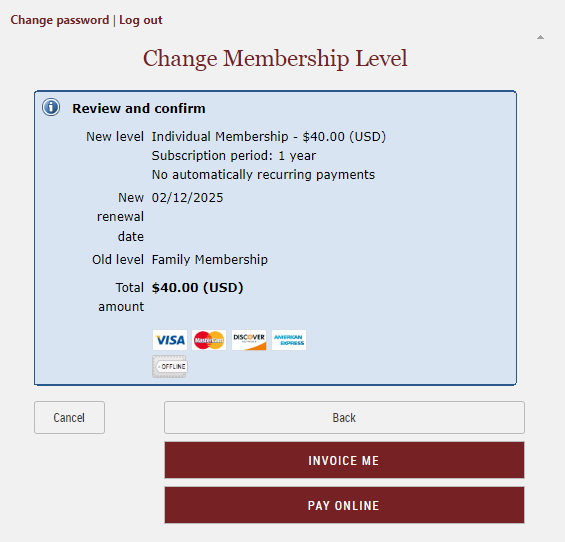
You may also contact us and we will be happy to help you with any membership changes you would like to see
-
Call us at (201) 568-6093
-
Send us an emailSend us an email
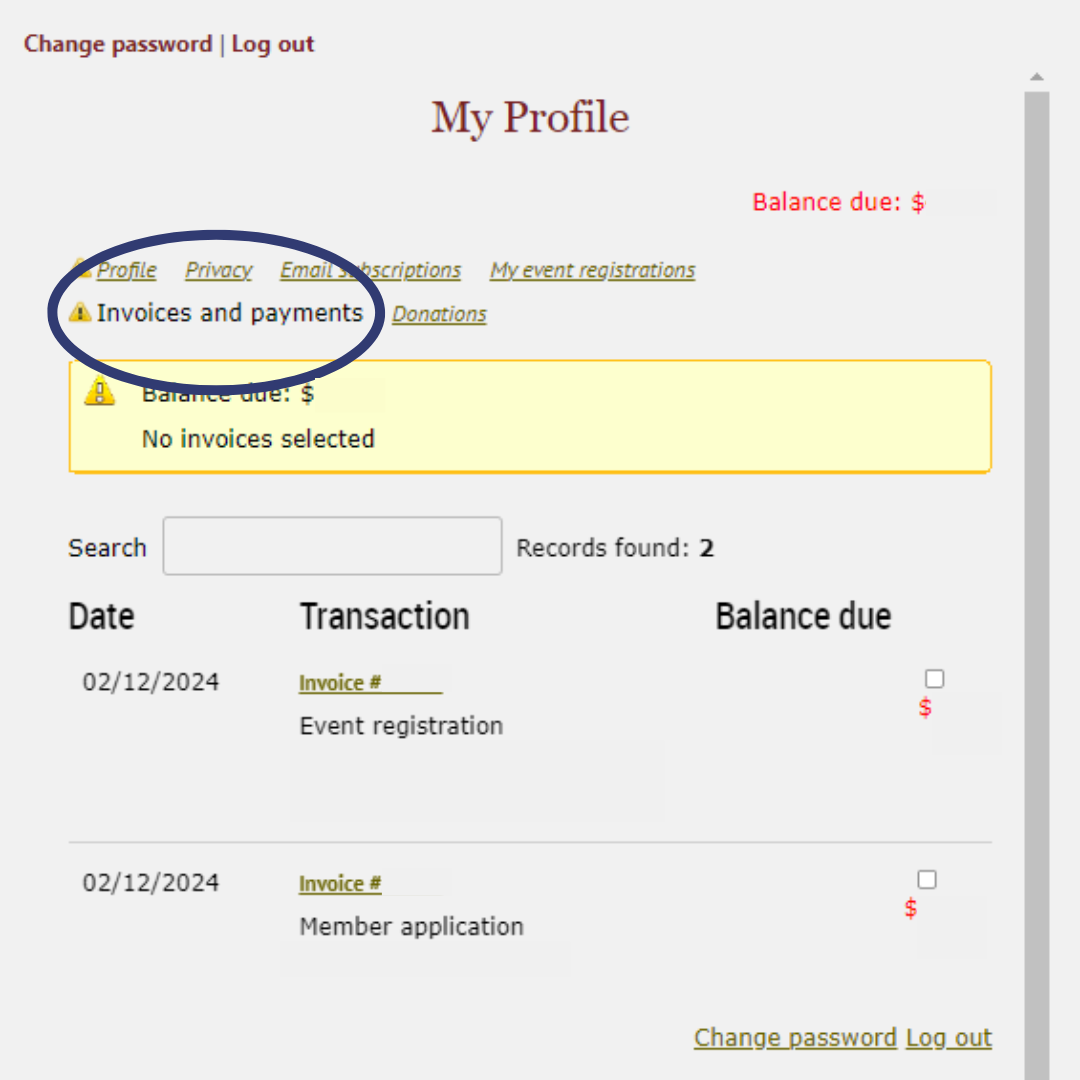
After you log in to your profile on the TNC site you will see a attention notification for anything that requires your attention. If you have any unpaid invoices, an attention notification will appear next to the Invoices and payments section.
To view and pay invoices, and view past payments, click Invoices and payments.
To pay one or more outstanding invoices, click the checkbox beside the invoice(s) you want to pay, then click the Pay online button. You will be taken to an online payment screen where you can enter your credit card details.
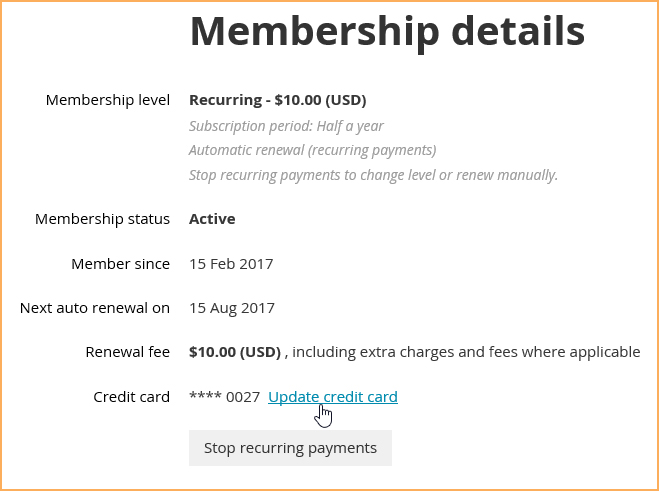
Once you have logged in navigate to your member profile. The link will appear by clicking on your name and then View profile.
An update credit card link will appear under the Membership details heading.
Here you may also stop recurring payments if you so desire.